A powerful way to connect to people is via social media. Since most of your work correspondence happens through email, adding social media icons to your signature is significant as it provides your customers and clients with easier access to you on your social network. If you use Gmail as your email client, you can always use extensions such as WiseStamp and BrandMyMail. If Outlook 2010 is your email client, learn how to add social media icons to your Outlook signature to let your clients connect with you on your social network.
How to Create an Outlook Signature with Social Media Icons
Although this is more of a manual process, it is only a one time process.
1. Download the social media icons you want to include in your signature. For instance, you can right-click and save these icons. Alternatively, you can find free social media icons of your choice from the web or other location.
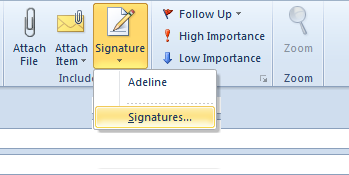
2. Open a new message form. On the Message tab, in the Include group, click Signature, and then click Signatures.
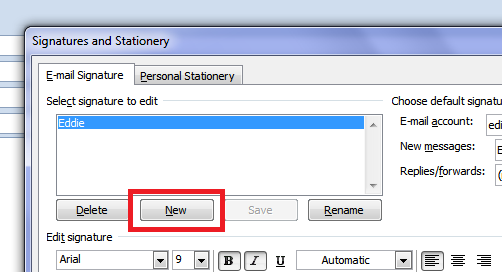
3. In the Signatures and Stationery dialog box, on the E-mail Signature tab, click New.
4. In the New Signature dialog box, enter a name for the signature and click OK.

5. In the Edit signature section, enter the details you want to include in the signature such as your name, phone number, or website address.
6. Use the formatting buttons in the Formatting toolbar to format the signature.
7. Click Picture, navigate to the location where you saved your social media icons, select and click OK to add them below your signature.
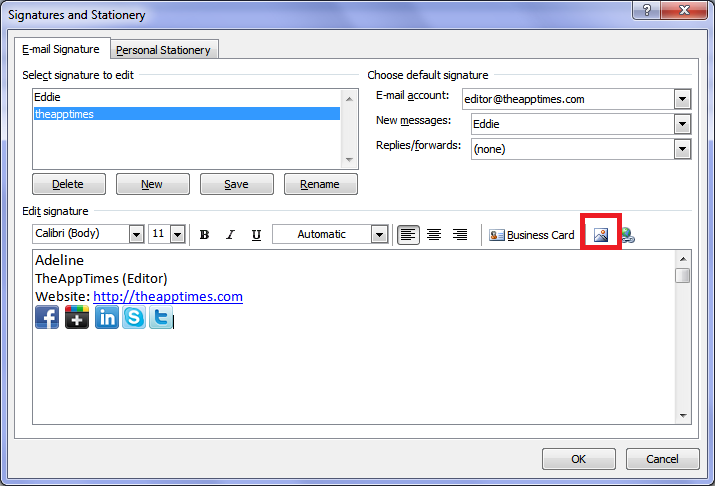
8. Now, click the first social media icon you added to the Signature and then on the Formatting toolbar, click Hyperlink.
9. In the Insert Hyperlink dialog box, in the Address text box, enter the URL of the social media network and click OK.
10. Similarly, add the URLs for the rest of the social media icons.
11. In the Choose default signature section, from the Email account drop-down list, select the email account with which you want to associate the signature. From the Message and the Replies/forwards drop-down lists, select the name of the signature (created in step 4).
12. When you are done, click OK to close the Signatures and Stationery dialog box.
Note: Use this button  or one of your choice and link it to your Pinterest account.
Now that you know how to create an Outlook signature with social media icons go ahead and create a stylish socially savvy signature.

Well popularity of social media has increased a lot. Social media is indeed good to market your business and to get traffic as well. You can increase your sales also with this.