If you worked with tables in a Word 2010 document, you would have noticed that adding continuous numbering to the cells within the table is a straightforward task if you want the items to be numbered row wise. This is because, by default, Word numbers the items in a table row wise. If you want the items in a Word table to be numbered column wise, then this tutorial will show you how to create a numbered list column wise in a Word table.
How to Create a Numbered List Column Wise in a Word Table
In this example, I have a table with three rows of data. I want to number the items starting with column 1 and moving on to column 2 and then 3 in a sequential order. If I select the entire table and hit the Numbering button, the data will be numbered row-wise.
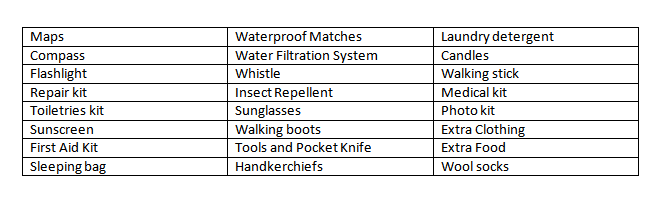
To create a numbered list according to the order of the columns here’s what I need to do.
1. Number the first column. To do this, select the first column and on the Home tab, in the Paragraph group, click the Numbering button.
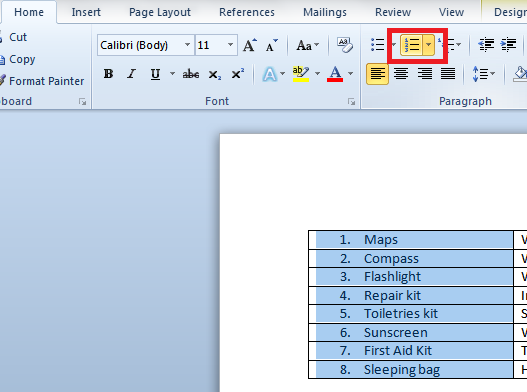
2. Number the second column. Select the second column and click the Numbering button again. This will number the items in the second column in the order 1,2,3…..
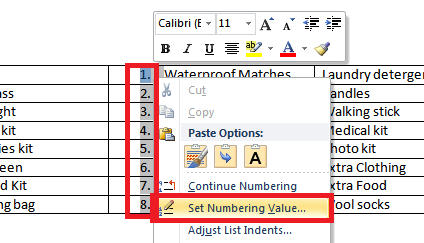
3. Click the number to select the numbering style, and then right-click the selection to display a contextual menu.
4. In the right-click context menu, choose Set Numbering Value.
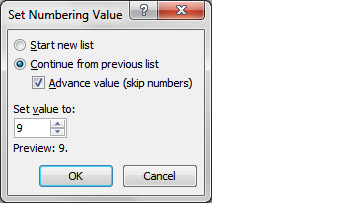
5. In the Set Numbering Value dialog box, select Continue from previous list, and then check the Advance value check box.
6. In the Set value to spin box, select the value that should continue from the previous value and then click OK. In this example, I will set the value as 9.
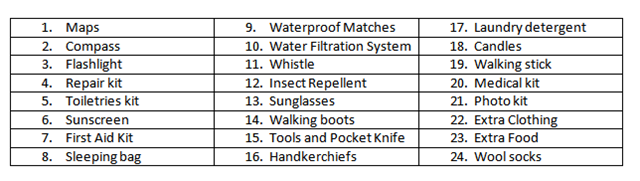
7. To continue numbering column 3, repeat steps 3 to 6. The end result will look like this.
Have you used this method to create a numbered list column wise in a Word Table? If you know a quicker and a smarter way of doing things in Word, Excel, or PowerPoint 2010, share your inputs with us by sending us an email at [email protected] or sharing your inputs using our comments form.

Leave a Reply