PowerPoint presentations are fascinating, so much that sometimes, we lose track of time and realize we need to rush things or even end a presentation abruptly. Such an act may look clumsy and unprofessional, and nobody wants to end a presentation on an embarrassingly abrupt note. One way to avoid this is to create a secret button to end a presentation. This button should be readily accessible to you at all times, so that if you have to shove off earlier than expected, you can do so much more gracefully.
How to Create a Secret Button to End a Presentation in Unusual Circumstances
1. Open up the presentation to which you need to add the secret button.
2. On the Insert tab, in the Illustrations group, click Shapes and choose a shape.

3. On the slide, preferably at the corner of the slide drag the mouse to draw the shape you selected in the previous step.

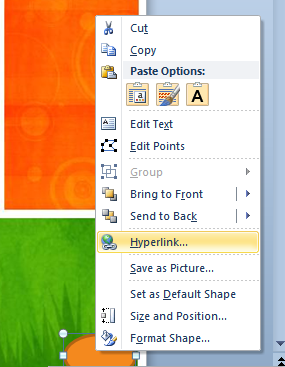
4. Right-click the shape and choose hyperlink to add a hyperlink to the last slide.
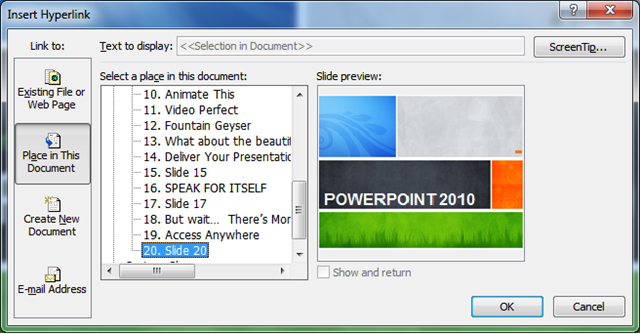
5. In the Insert Hyperlink dialog box, in the Link to section, select Place in this Document.
6. In the Select a place in this document list box, select the last slide or your preferred closing slide and click OK.
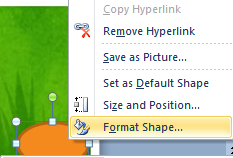
7. Now, that the shape has been hyperlinked, you need to make it invisible, so that it does not stand out absurdly when you are presenting it. To do this, right-click the shape and choose Format Shape.
8. In the Format Shape dialog box, on the Fill tab, select No Fill.
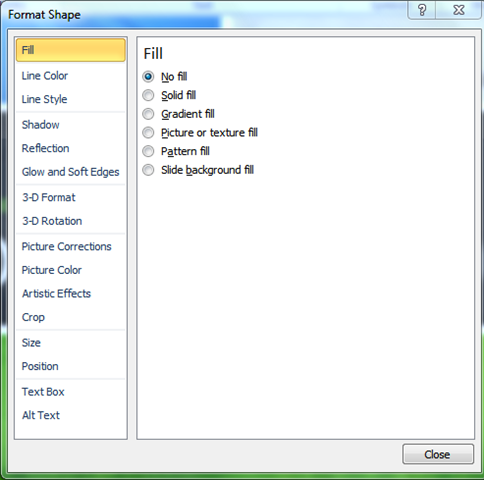
9. Navigate to the Line Color tab and select No Line and click Close.
You have just created your secret invisible button the first slide of the presentation. But you need to replicate this for all slides coz you never where when you might have to close the presentation. You can create the secret button in one of two ways.
1. Copy and Paste
You can copy and paste the button in each of the slides you have.
2. Use the Master Slide
Add the secret button to the master slide.
1. On the View tab, in the Master Views group, click Slide Master.
2. On the first slide, create the invisible button as mentioned in the previous steps.
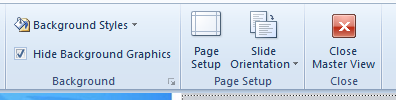
3. On the Slide Master tab, in the Close group, click Close Master View to return to normal view mode.
Now that you have set up the secret button on your presentation, run the slide show, and place you mouse at the corner of the screen where you set up the button. The mouse pointer will turn into a hyperlink. You are now one step closer to a well prepared presentation.
Follow us on Twitter or join our Facebook fan page to get the latest tutorials, updates and how-to articles on Microsoft, Google and Apple products.

Leave a Reply