If you are an Amazon affiliate, you may be using a widget or program to collate your Amazon RSS feeds and incorporate them into your advertising campaigns such as blog posts or tweets. In this post, I’ll show you how to collate Amazon RSS feeds into Excel, so that you can stay on top of the latest and updated products and pricing information. This will take a few minutes of your time to set up and save you much more when you’re researching.
How to Subscribe to Amazon RSS Feeds Category Wise
Before you get started, you need to subscribe to Amazon RSS feeds. Subscribing to the category wise Amazon feeds is actually quite simple, just not obvious. To do this:
1. Navigate to Amazon.com.
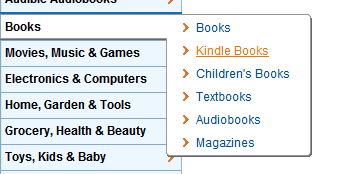
2. From the left navigation menu, select the category you want to subscribe to.
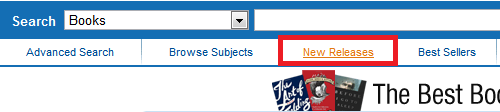
3. On the Category page, select the type of item you want to subscribe to. Select the item from below the Amazon Search box. For the purpose of this tutorial, let’s select New Releases.
4. You can see the list of the latest new releases. Scroll down to the bottom of the page. You’ll notice that orange button sitting at the bottom of the page.
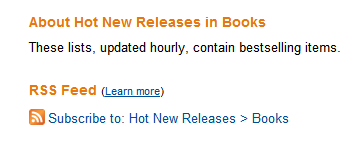
5. Depending on the browser that you are accessing the website from, you will see the options to subscribe to the feed. Click Subscribe to this feed after choosing your preferred feed aggregator.
Voila! Now you can get all the latest stories and news right in your Inbox or Feed Reader.
How to Collate Amazon RSS Feeds to Excel 2010
1. Navigate to the Amazon RSS feed page, copy the link to the feed and append your affiliate ID to the feed link. For instance, if the feed URL is
http://www.amazon.com/gp/rss/bestsellers/electronics/502394/ref=zg
_bs_502394_rsslink
Append, your affiliate id so that the feed link reads
http://www.amazon.com/gp/rss/bestsellers/electronics/502394/ref=zg
_bs_502394_rsslink?tag=YOUR AFF ID
(Replace YOUR AFF ID with your actual ID.)
2. Open up the Excel sheet that you want to insert the Amazon feeds.
3. Select the Developer tab. The Developer tab is not visible by default. To activate it, follow these steps.
4.On the Developer tab, in the XML group, click Source.
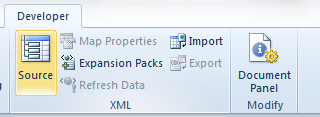
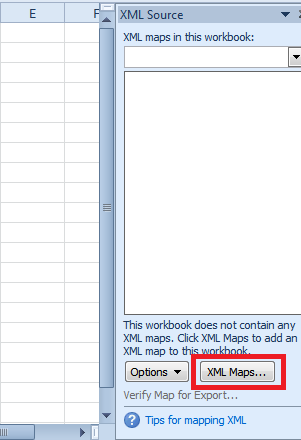
5. The XML Source pane is displayed to the right of the workbook. Click XML Maps.
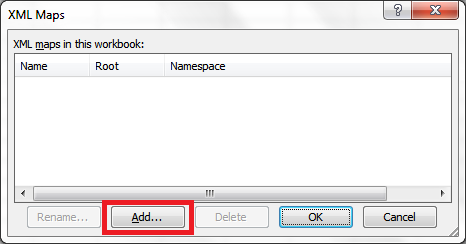
6. In the XML Maps dialog box, click Add.
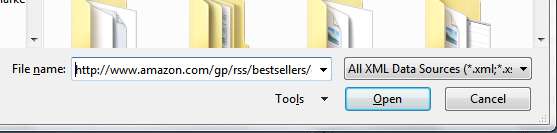
7. In the Select XML Source dialog box, in the File name text box, paste the RSS feed you created in Step 1. Click Open.
8. In the Microsoft Excel message box, click OK to permit Excel to create a schema. The XML Maps dialog is displayed with the RSS map added. Click OK to close dialog box.
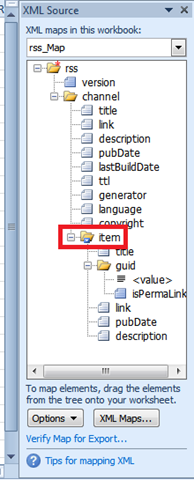
9. In the XML Source pane, observe that data is complied. Click the Item folder and drag it to the worksheet, say to cell B1.
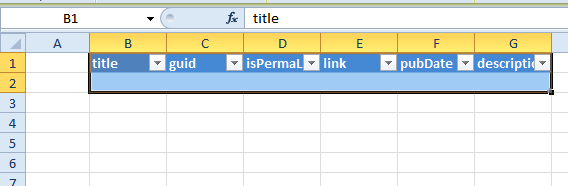
10. Delete columns you don’t need. I am going to delete columns C and D.
11. Now , right-click the table and choose Refresh.
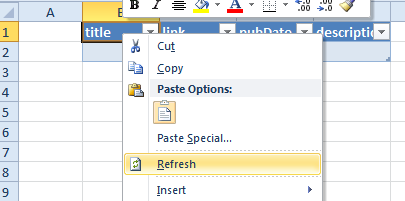
12. The table will now display all the Amazon RSS feeds from that category.
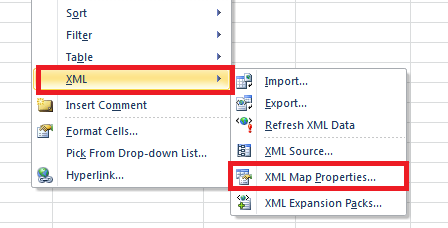
You can change the settings of the XML sheet by right-clicking the table, and choosing XML->XML Map Properties.
You can also use these steps to pull data other than Amazon feeds to Excel.

Leave a Reply